
GIGA VU SONIC - Lecteur multimédia portable JOBO - Notice d'utilisation et mode d'emploi gratuit
Retrouvez gratuitement la notice de l'appareil GIGA VU SONIC JOBO au format PDF.


| Intitulé | Description |
|---|---|
| Type de produit | Lecteur multimédia portable |
| Caractéristiques techniques principales | Écran LCD haute résolution, prise en charge des formats vidéo et audio variés |
| Alimentation électrique | Alimentation par batterie rechargeable ou adaptateur secteur |
| Dimensions approximatives | 150 x 100 x 30 mm |
| Poids | 300 g |
| Compatibilités | Compatible avec les formats de fichiers MP4, AVI, MKV, MP3, WAV, etc. |
| Type de batterie | Batterie lithium-ion rechargeable |
| Tension | 5V |
| Puissance | 10W |
| Fonctions principales | Lecture vidéo, audio, affichage d'images, enregistrement audio |
| Entretien et nettoyage | Nettoyer l'écran avec un chiffon doux, éviter les produits chimiques agressifs |
| Pièces détachées et réparabilité | Disponibilité de pièces de rechange pour la batterie et l'écran |
| Informations générales | Garantie de 2 ans, support technique disponible |
FOIRE AUX QUESTIONS - GIGA VU SONIC JOBO
Questions des utilisateurs sur GIGA VU SONIC JOBO
0 question sur cet appareil. Repondez a celles que vous connaissez ou posez la votre.
Poser une nouvelle question sur cet appareil
Téléchargez la notice de votre Lecteur multimédia portable au format PDF gratuitement ! Retrouvez votre notice GIGA VU SONIC - JOBO et reprennez votre appareil électronique en main. Sur cette page sont publiés tous les documents nécessaires à l'utilisation de votre appareil GIGA VU SONIC de la marque JOBO.
MODE D'EMPLOI GIGA VU SONIC JOBO
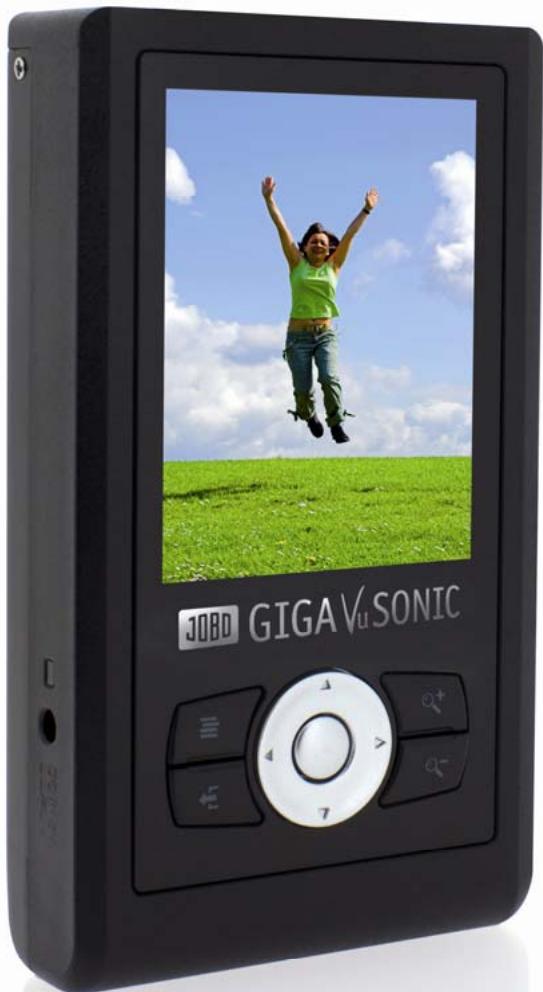
GIGAVuSONIC
Manual
Index
Chapter I Basic Functions 3
- Overview 3
- Buttons, Slots and LCD screen 4
Buttons 5
Symbols of battery electricity 6
- Charging the battery 6
Charging indicators 7
Chapter II 8
Photo 8
1. Browser 9
Picture wall 9
- Search 13
- Recover 14
Chapter III 16
Backup 16
- Full Backup 17
- Incremental Backup 18
3.Backup Setup 20
Chapter IV 23
- File Manager 24
2.Creating Thumbs 25 - USB Connection 25
- Slide Show 26
- Running Script 26
- Firmware Update 26
Chapter V 27
Tools 27
- Hard Drive Tools 28
- Memory Card Tools 29
Chapter VI 30
Setup 30
- Interface Setup 31
2.Backlight Setup 31 - Language Setup 32
4.KeySound 32 - Reset 32
- System Information 32
Appendix A: Safety And Operation 33
Appendix B: Operation Techniques and Problem Solving 34
- Operation techniques 34
- Troubleshooting 34
- Replacing and Installing the Battery 35
Contact/Service 36
Chapter I Basic Functions
1. Overview
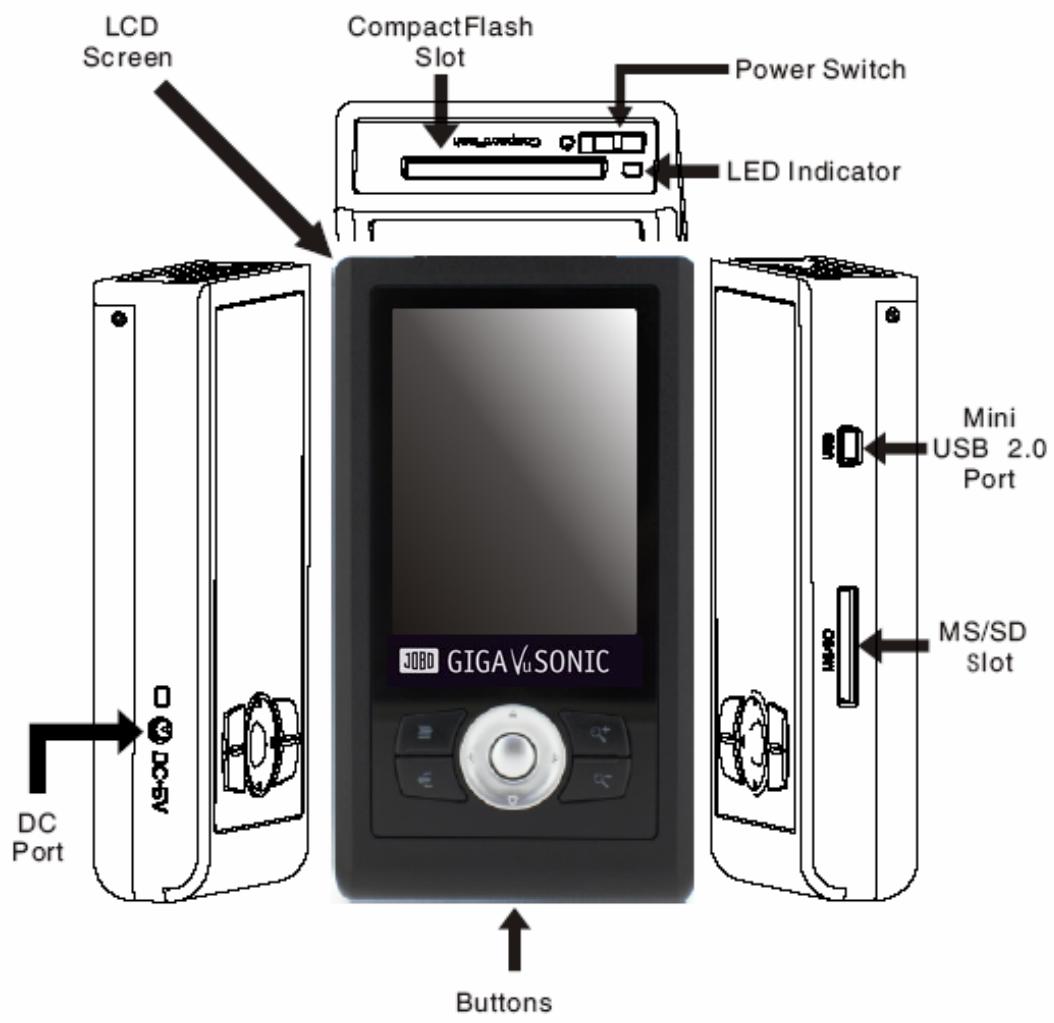
2. Buttons, Slots and LCD screen
Power switch
Start GIGA VU SONIC:
Push and hold the power switch for about 3 seconds till the startup frame appears, and then release the power switch.
Turn off GIGA VU SONIC:
Push the power switch slightly and select
Forced shutdown of GIGA VU SONIC:
Push and hold the power switch till the "Shutdown In Process" frame appears, and then release the power switch.
LED indicators
Yellow is shown:
An error occurred to the current operation.
Green is shown and flashing:
GIGA VU SONIC is processing data, such as USB connection, backup of memory card.
CompactFlash slot (CF slot for short)
For insertion of CF memory cards and compatible equipment.
MS/SD slot
For insertion of MS and SD memory cards and compatible equipment.
Buttons
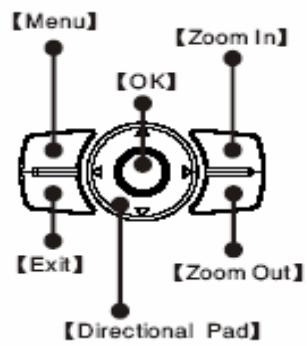
Button name
OK
Directional Pad
Menu
Exit
Zoom in
Function
Confirming choice or starting a function.
Changing the selected options.
When the interface has additional functions, press the button to retrieve the menu.
Exiting the current function mode and returning to the previous one.
Zooming in and out pictures being browsed
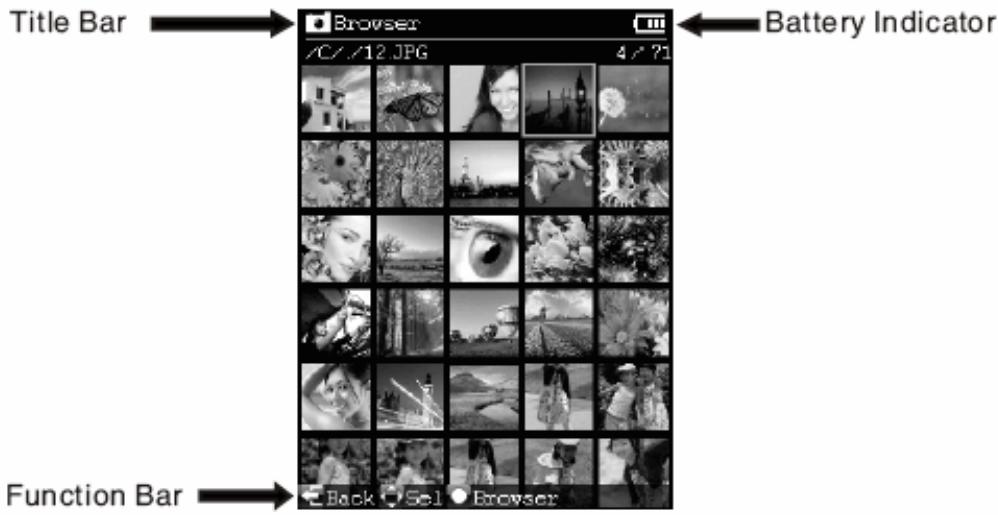
LCD screen
GIGA VU SONIC has a 3.2 LCD screen.
Title column:
Indicating current function
Status indication column:
Operating instructions in the current interface Symbols of battery
Symbols of battery electricity
| Status | Indication |
| Electricity is over 75% | |
| Residual electricity is 60% | |
| Residual electricity is 30% | |
| (RED) | Electricity is used up. Charge it as soon as possible. |
| (RED) | Electricity is used up. The unit will shut down automatically. |
3. Charging the battery
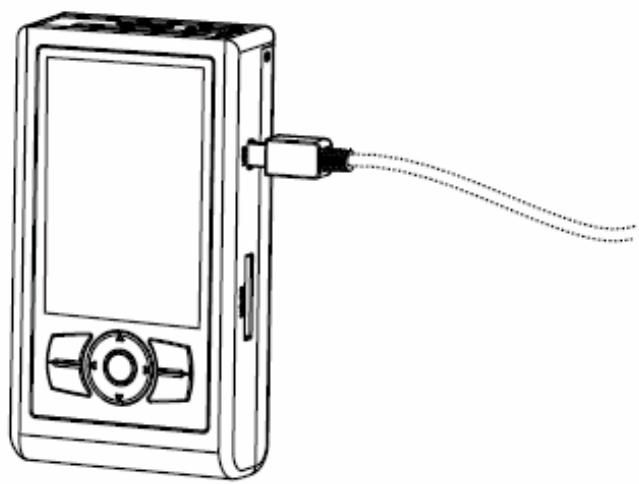
Charging the battery with the USB cable provided:
When the unit is powered off, insert GIGA VU SONIC into USB2.0 interface of Mac or PC (frontal USB ports and external USB HUB of most PCs cannot supply sufficient power, so please connect GIGA VU SONIC to USB2.0 port of the host), and the built-in lithium battery will be charged.
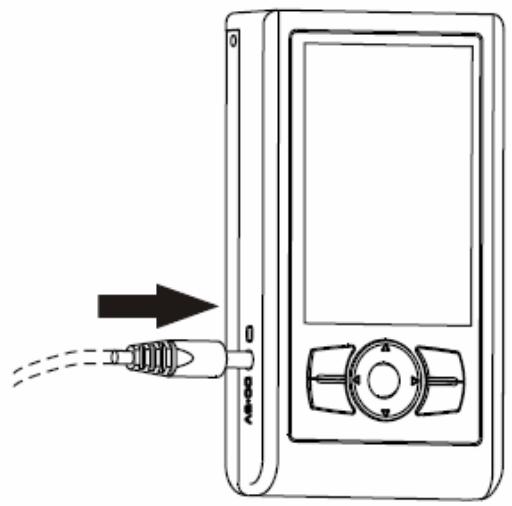
Charging the battery with the power adapter provided:
When the unit is powered off, insert the power adapter provided into DC port, and the built-in lithium battery will be charged. When adapters other than those of the original manufacturer are used, ensure the output index conforms to requirements. Refer to relevant sections of "Appendix A".
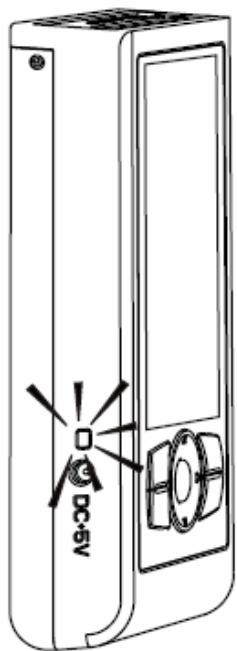
Charging indicators:
| Status | Indication |
| Constant on | Charging in process |
| Extinguished | Charging finished |
| Flashing | Malfunction of charging. Refer to relevant sections of “Appendix B” |
Chapter II
Photo
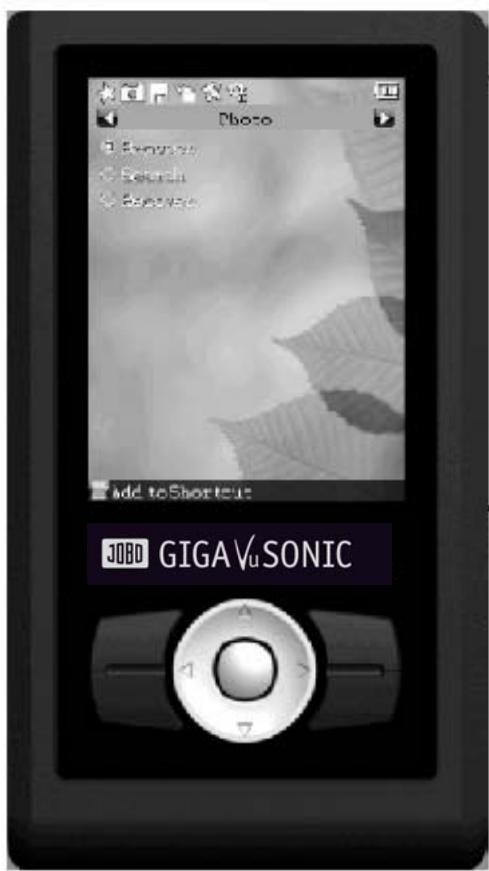
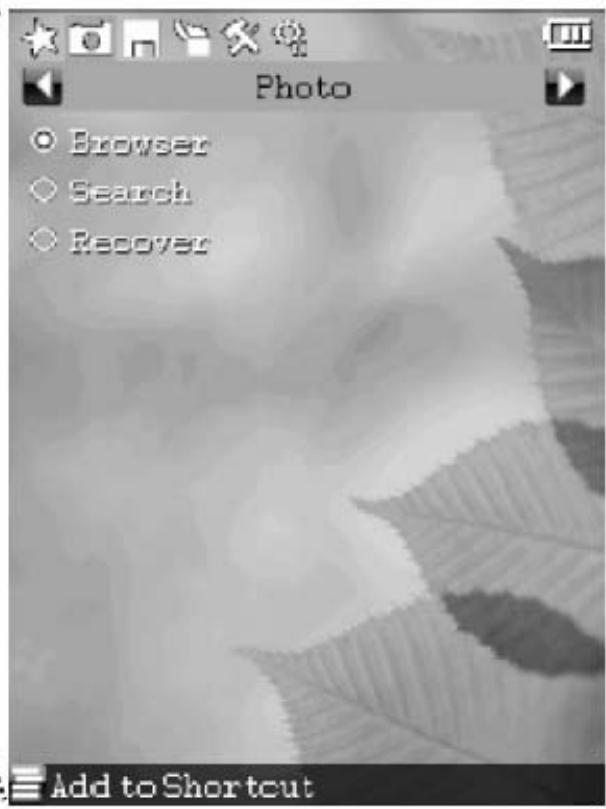
GIGA VU SONIC has built-in picture browser, picture search and picture recovery tools, etc. These enable you to browse and share digital pictures conveniently, and even recover your loss due to deleting pictures by mistake.
1. Browser
The built-in picture browser of GIGA VU SONIC allows you to browse your digital pictures without going through the computer.
Starting picture browser:
Select
Selecting folders to browse:
Select the folder you desire to browse in the Folder Selecting Window.
Picture wall:
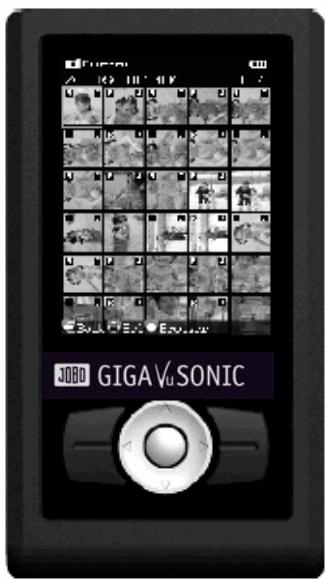
Digital pictures in the selected folder will be displayed horizontally in the form of thumbnail. You may use the „Direction“ button to change the highlighted pictures.
"R" and "J" marks:
R: The picture contains RAW format data.
J: The picture contains.JPG format data.
Changing size of thumbnail:
In the Picture Wall, pressing "Zoom In" and "Zoom Out" buttons can change size of the thumbnail.
Viewing pictures full screen:
In the Picture Wall, press the “Ok” button to display the highlighted pictures full screen.
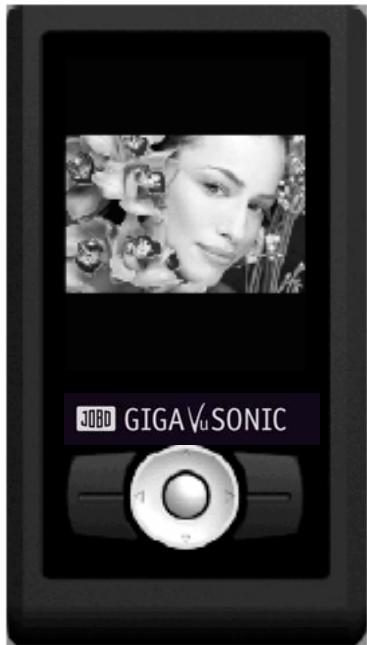
Viewing the previous or next picture:
"Direction" button Left: the previous picture "Direction" button Right: the next picture
Rotating and enlarging the picture:
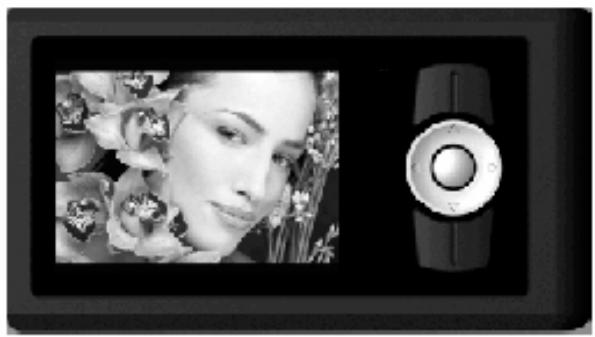
Every time you press the "Ok" button, the picture will rotate 90 degrees, and automatically zoom in and out to adapt to the screen.
Display control prompt:
Press "Menu" button once to select
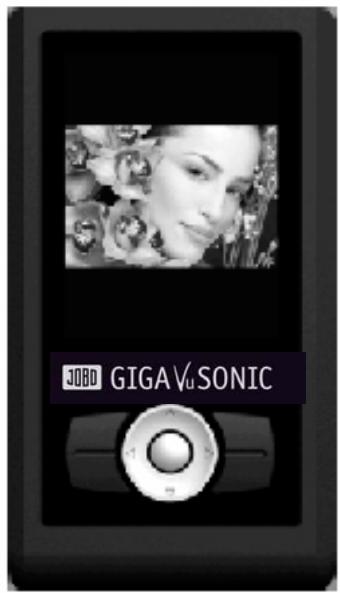
Local enlargement of the picture:
Press "Zoom In" button, and the picture browsed full screen will be
displayed by enlarged central part. Go on pressing "Zoom In" or "Zoom Out" button,
the amplification grades will switch among 1/8, 1/4
and 1/1. Continuously press "Zoom Out" button for a couple of times or
"Exit" button once, it will return to the mode of browsing in full screen.
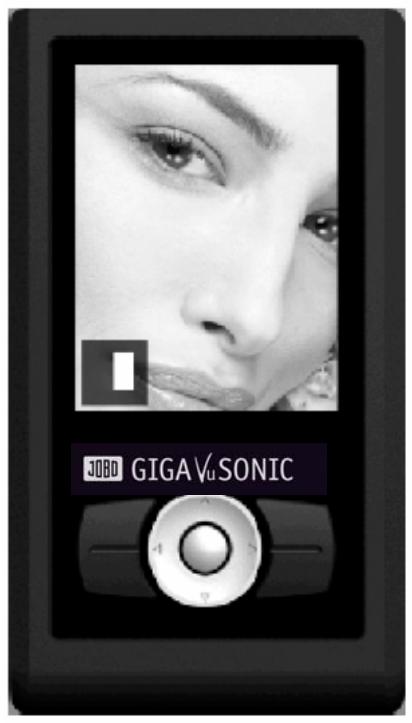
Changing local area of display:
In the mode of local enlargement, press "Direction" button, and you
can change display area of the picture.
Displaying EXIF brief:
In the mode of browsing in full screen, press Up of the "Direction"
button to display or close EXIF brief, or press "Menu" button to select
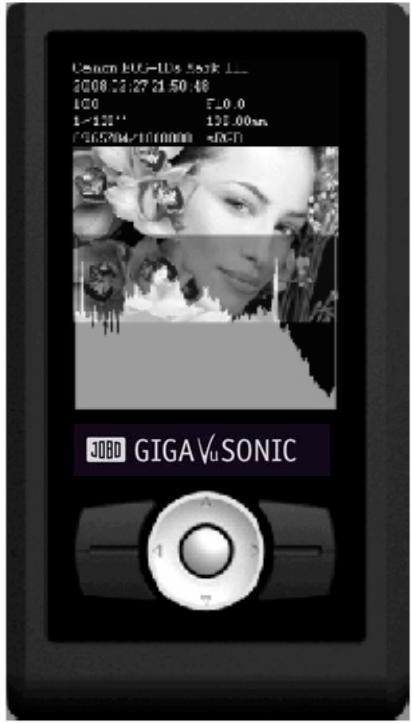
Displaying Histogram:
In the mode of browsing in full screen, press "Menu" button to select

| Select | Function |
| Close | The histogram will not be displayed |
| Red | Display the red Histogram of Component of the picture currently browsed |
| Green | Display the green Histogram of Component of the picture currently browsed |
| Blue | Display the blue Histogram of Component of the picture currently browsed |
| Lum | Display the Luminance Histogram of Component of the picture currently browsed |
You may press Down of the "Direction" button to display or conceal the histogram rapidly.
2. Search
GIGA VU SONIC allows you to browse pictures of designated date quickly.
Searching pictures:
If you want to search the memory card, insert it first into the corresponding slot. b) Select
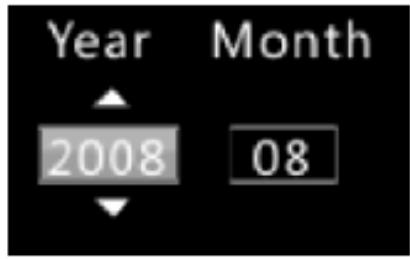
When searching is in process, demonstration thumbnail of the picture searched out will be displayed under the corresponding date. Name of the folder being searched will display at the bottom. You can exit searching by pressing "Exit" button.
After searching is finished, you can press "Ok" button to browse the picture searched out.
3. Recover
If you delete pictures on the memory card by mistake, the function of recovery will recover your loss.
With the function, you can recover:
- the deleted pictures on the memory card (such as using deletion function of the digital camera)
- pictures of designated formats. See the form below:
Camera
Format
| Canon | CR2,TIF,CRW |
| NIKON | NEF |
| PENTAX | DNG,PEF |
| SAMSUNG | PEF |
| RICOH | DNG |
| SONY | SR2,ARW |
| OLYMPUS | ORF |
| PANASONIC | RAW |
| MAMIYA | MEF |
(*Please visit the official website for the list of latest compatible formats)
The function DOES NOT enable you to recover:
- the memory card to which newer data are written after the deletion
- the picture data which are fragmented or covered by other files
- pictures on the hard drive
- files in other formats than those designated
- folder structure on the memory card
Recovering pictures:
a) Insert the memory card to be recovered into the corresponding slot.
b) Select
c) In the process of recovery, the thumbnail of the picture being recovered appears on the screen horizontally. You may cancel the recovering operation by pressing "Exit" button.
d) The picture being recovered will be stored in partition C of the built-in hard drive, and it will be in the folder named "RECVxxxx" (x refers to numerical number, which automatically increases by degree).
Browsing the recovered pictures:
After recovering operation is completed, press "OK" button, and you can browse the picture in picture browser. You may also browse it by selecting the function of
Chapter III
Backup

The unit adopts parallel processing system that is the most advanced currently and can enormously enhance the speed of backup from the memory card to the hard drive.
1. Full Backup
The full backup function can copy all files and folders on the memory card to the hard drive.
With the function, you can:
- back up multiple types of memory card, such as CF, SD, MS, etc.
- back up the picture data on memory cards of types mentioned above and other non-system data.
- create new folders in the built-in hard drive and maintain directory structure of the original card.
The function DOES NOT enable you to:
- back up memory card label and data of system files (such as Recycle Bin of Windows).
- back up memory cards adopting FAT12 file system.
- back up memory cards capacity of which is less than or equal to 64MB.
Backing up CF memory cards:
Insert CF card into CF slot on the top of GIGA VU SONIC. Select the function of
Backing up SD and MS memory cards:
Insert SD and MS memory cards into MS/SD slot on the right of GIGA VU SONIC. Select the function of
Backing up multiple memory cards:
In the case of the multiple memory cards of the same type, such as multiple CF cards, and insert it into the corresponding slot. Select the function of
In the case of multiple memory cards of different types, such as CF and SD cards, insert them into the corresponding slots respectively. Select the function of
Viewing backup data
After successful backup, press Ok button to start the picture browser and browse pictures in the backup folder.
If you need to view other types of data, refer to relevant sections of "File Manager".
2. Incremental Backup
Incremental backup will distinguish differences between the memory card and folders of the hard drive. It will also copy the files and folders newly added to the memory card to the hard drive folder, thus reducing data quantity of each backup and avoid repeated data.
With the function, you can:
- copy data on the memory card to the last successful backup folder (full backup or incremental backup)
- select an existing folder, and copy the non-repeated data of the memory card to the folder.
The function DOES NOT enable you to :
- back up memory card label and data of system files (such as Recycle Bin of Windows)
- memory cards adopting FAT12 file system.
- back up files of the same name but different data.
- synchronize different data of the memory card and the hard drive folder, namely the data existing in the designated hard drive folder but not on the memory card will not be rewritten into the memory card.
- make incremental backup in a hard drive folder without any data.
Making incremental backup of CF memory card: Insert CF card into CF slot on the top of GIGA VU SONIC. Select the function of
Making incremental backup of SD / MS memory cards: Insert SD and MS memory card into MS/SD slot on the right of GIGA VU SONIC. Select the function of
Changing incremental backup folder:
Select the function of
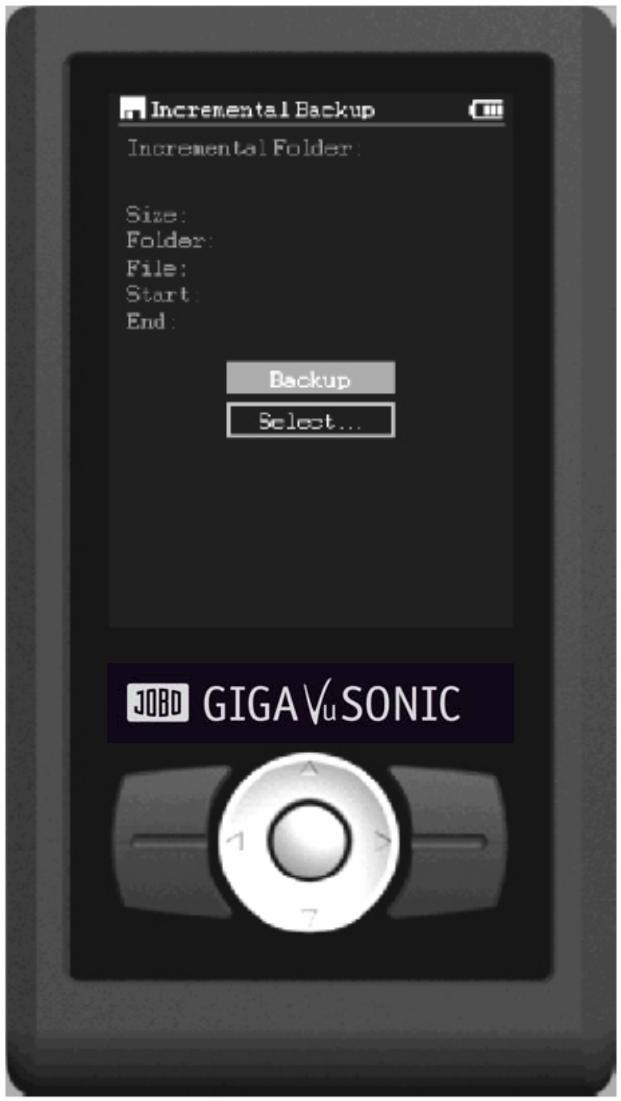
3. Backup Setup
You can change Verify, Folder, Speed and Visual of backup.
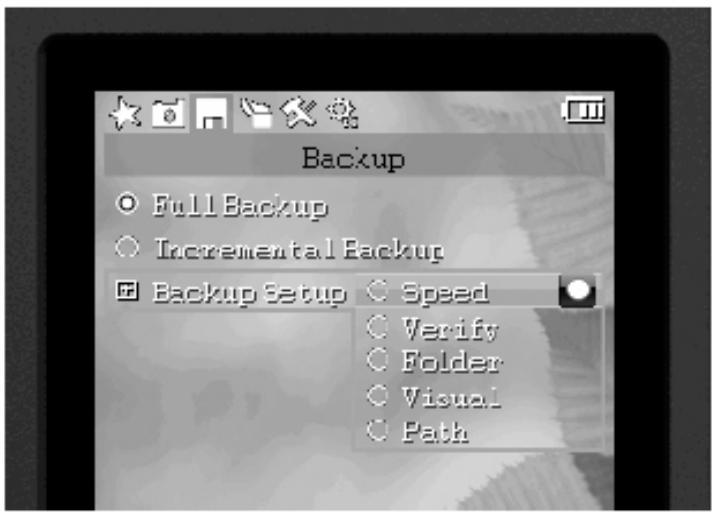
Changing verification mode:
Under
Real-Time Verify:
The real-time verification performs CRC verification of data in the course of file copying. Upon discovery of error, it will be retracted. I/O error will be reported after the retry fails. The real-time verification is supported by hardware, so it will not influence the copying speed.
The real-time verification is applicable to equipment as follows: SATA hard drive, CF memory card of UDMA, SD card, MMC card and MS card.
Verify HDD:
After the function of verifying hard drive is selected, for each file copied, CRC checksum of the file will be recorded (multiple CRC checksums will be recorded for large files). Whenever all files in a folder are copied, the system will reread the hard drive, recalculate the CRC checksum of each file and compare it with the checksum during copying to ascertain the copying operation is fully correct.
When the function is started, it will:
- prevent data from error and loss due to bad sectors of hard drive.
- influence copying speed, extent of which depends on the reading speed of the hard drive.
Verify Card:
After the verifying memory card function is selected, for each file copied, CRC checksum of the file will be recorded (multiple CRC checksums will be recorded for large files). Whenever all files in a folder are copied, the system will reread the memory card, recalculate the CRC checksum of each file and compare it with the checksum during copying to ascertain the copying operation is fully correct.
When the function is started, it will:
- detect the data errors on the memory card.
- influence copying speed, extent of which depends on the reading speed of the memory card.
Changing Speed mode:
Under
Hyper speed:
Hyper speed uses slow operating speed of the hard drive, and renews copying progress whenever a file is copied.
When the function is started, it:
will reach an average copying speed of about 16Mbytes/s.
- may not reach an average copying speed of about 16Mbytes/s when a large quantity of small-sized files are copied.
UDMA66 speed:
UDMA66 speed uses quick operating speed of the hard drive and, in order to speed up, renews copying progress at an interval of 1 second.
When the function is started, it:
will reach an average copying speed of 30~40Mbytes/s.
- cannot reach the maximum average speed when backing up CF memory card of non-UDMA specification.
- cannot reach the maximum average speed when function of verifying hard drive, verifying memory card or preview of copy is started.
- cannot reach the maximum average speed when battery electricity is small or ambient temperature is low. It may lead to failure of copying in serious situation. In this case, charge the battery or retry it by changing into "Hyper Speed".
Changing Folder Name:
Under
Changing Visual mode
Visual copying is one of GIGA VU SONIC features. When it is started, picture file is copied, and its preview pictures are displayed on LCD screen.
Turning On/Off visual copying:
Under
Selecting display mode of preview picture:
Under
Tile : The preview picture being copied is displayed on the screen by tiled layout in the form of icon. The arrangement sequence is from the left to the right, from top to bottom. When the display exceeds the screen bottom, it will automatically scroll upwards.
Single: The preview picture being copied is displayed in the centre of the screen in the mode of single picture.
Changing preview picture sizes:
Under
Large: 80 pixels x 80 pixels
Medium: 60 pixels x 60 pixels
Small: 40 pixels x 40 pixels
Changing source of preview picture: Under
When the function is started:
when reading preview picture data from the memory card, the preview picture will display error or fail to display if the preview picture data exceed 900Kbytes or spread on fragments of the file.
HDD: After the data transfer is completed, preview picture data are read from the hard drive and displayed on the screen.
When the function is started:
backup speed will be greatly affected because image decoding cannot be performed in the course the data are transferred.
Backing up to the designated folder: Under
Chapter IV
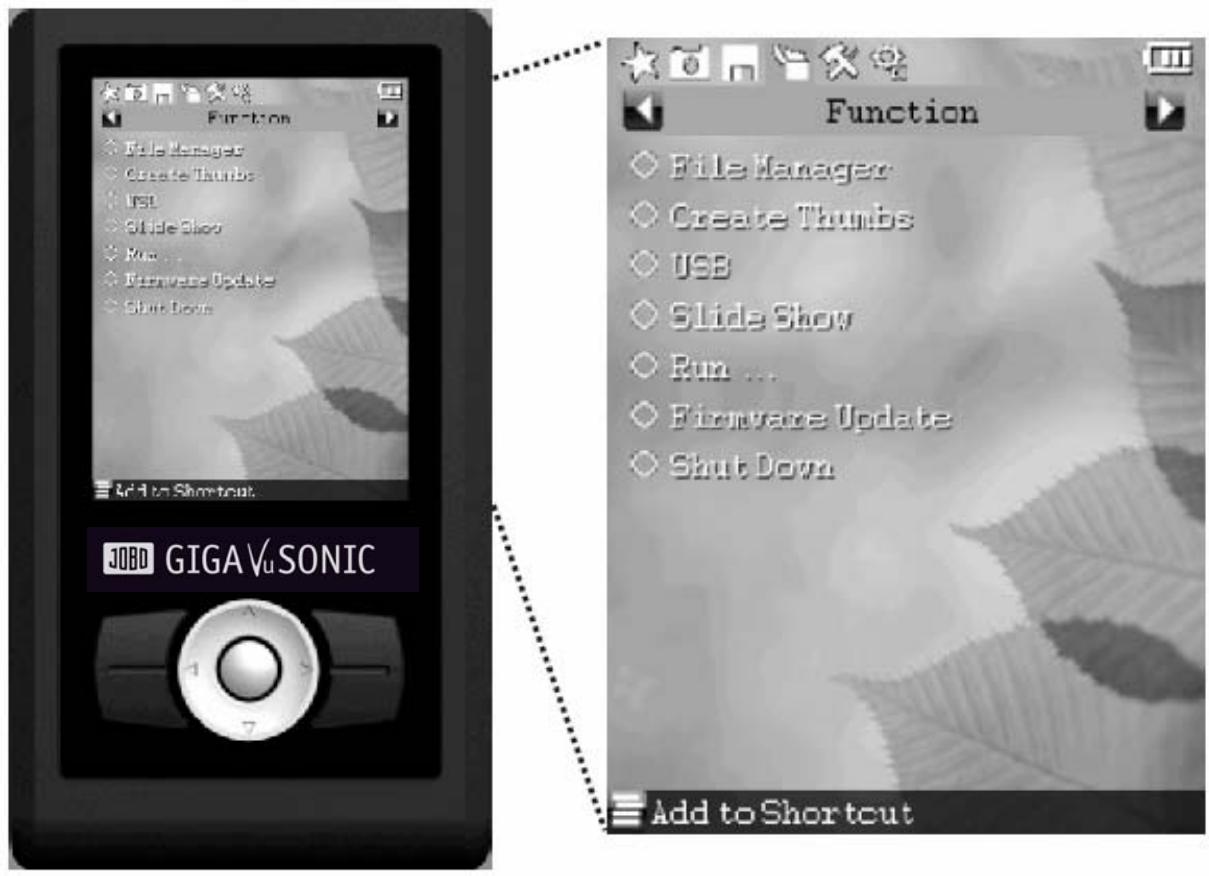
Functions
1. File Manager
The File Manager allows you to edit (such as copying, cutting, deleting, etc.) Pictures, files and folders without going through the computer.
Starting File Manager:
Under
Selecting a single file or folder:
Start the File Browser, press Up or Down of the "Direction" button, and move the highlighted bar to the file or folder to be selected. When the folder is selected, press Right of the "Direction" button, and you can enter the folder.
Selecting multiple files or folders:
Start the File Manager, open a folder, press Ok button on the option you desire to select, and will appear on the icon of the selected option. Repeat the operation above till all options you desire are selected.
The function enables you to:
- select multiple files or folders in the same folder.
- process many an option together, such as copying, etc.
The function DOES NOT enable you to:
- select multiple options from different folders. The last multiple choice in a different folder will cover all previous multiple choices.
Copying and cutting file or folder:
Start the File Browser, select (single or multiple choice) the file or folder to be handled, press the "Menu" button, and select
Deleting file or folder: Start the File Browser, select (single or multiple choice) the file or folder to be handled, press the "Menu" button, and select
Changing the sequencing mode of option display:Start the File Browser, press the "Menu" button, select
Creating a new folder:Start the File Browser, enter the target folder, press the "Menu" button, and select
Changing the name of file and folder:Start the File Browser, select the folder to be renamed (single choice only), press the "Menu" button, and select
2. Creating Thumbs
GIGA VU SONIC can create thumb file for digital pictures in batch. Under "Function" on the main menu, select
The function enables you to:
- apparently speed up browsing images in JPG format.
The function does not enable you to:
- create index file for digital pictures in non-JPG format.
3. USB Connection
a) Use the provided USB cable to connect GIGA VU SONIC to USB2.0 port of Mac or PC (frontal USB ports and external USB HUB of most PCs cannot supply sufficient power, so please connect GIGA VU SONIC to USB2.0 port of the host).
b) Under
c) After the operating system has installed the driver automatically, you may access and use GIGA VU SONIC as a "local disk".
The function enables you to:
- access data on GIGA VU SONIC hard drive
The function DOES NOT enable you to:
- charge GIGA VU SONIC Because USB cable can supply power of 500mA only, battery electricity is still consumed when USB is connected. Transferring data through USB connection for long may exhaust the battery so that the unit shuts down automatically, but this is not a malfunction.
- access the data of the memory card inserted in GIGA VU SONIC slot
4. Slide Show
Under
5. Running Script
The unit supports the user to compose interpretation of script and run it, and realize more extensive and flexible functions. For operation of running the script, refer to the online Reference Manual of SDL Script Language.
6. Firmware Update
Users may update the firmware of GIGA VU SONIC by themselves.
The function enables you to:
- apply the latest firmware.
- enhance various functions and repair system holes timely.
The function DOES NOT enable you to:
- update the firmware when the battery is running out of power.
- write the firmware whose capacity exceeds 1.7MB into the built-in FLASH.
Updating the firmware to hard drive
The method is recommended for updating because it will not erase the built-in Flash chip.
a) Download firmware file“.SEF” from the official website.
b) Ensure name of the firmware is "CSUSTART.SEF" (quotation marks excluded).
c) Write the firmware file via USB connection into the root folder of hard drive C.
d) Shut down GIGA VU SONIC.
e) Restart the unit, and the new firmware will be applied.
Updating the firmware to built-in Flash chip
The method is used to write the firmware file into the built-in Flash chip of GIGA VU SONIC.
a) Download firmware file“.SEF” from the official website.
b) Copy the firmware file into the memory card or the built-in hard drive. If memory card is used, insert it into the corresponding slot.
c) Under "Setup" on the main menu, select
d) After the updating is completed automatically, shut down GIGA VU SONIC.
e) Restart the unit, and the new firmware will be applied.
Chapter V
Tools
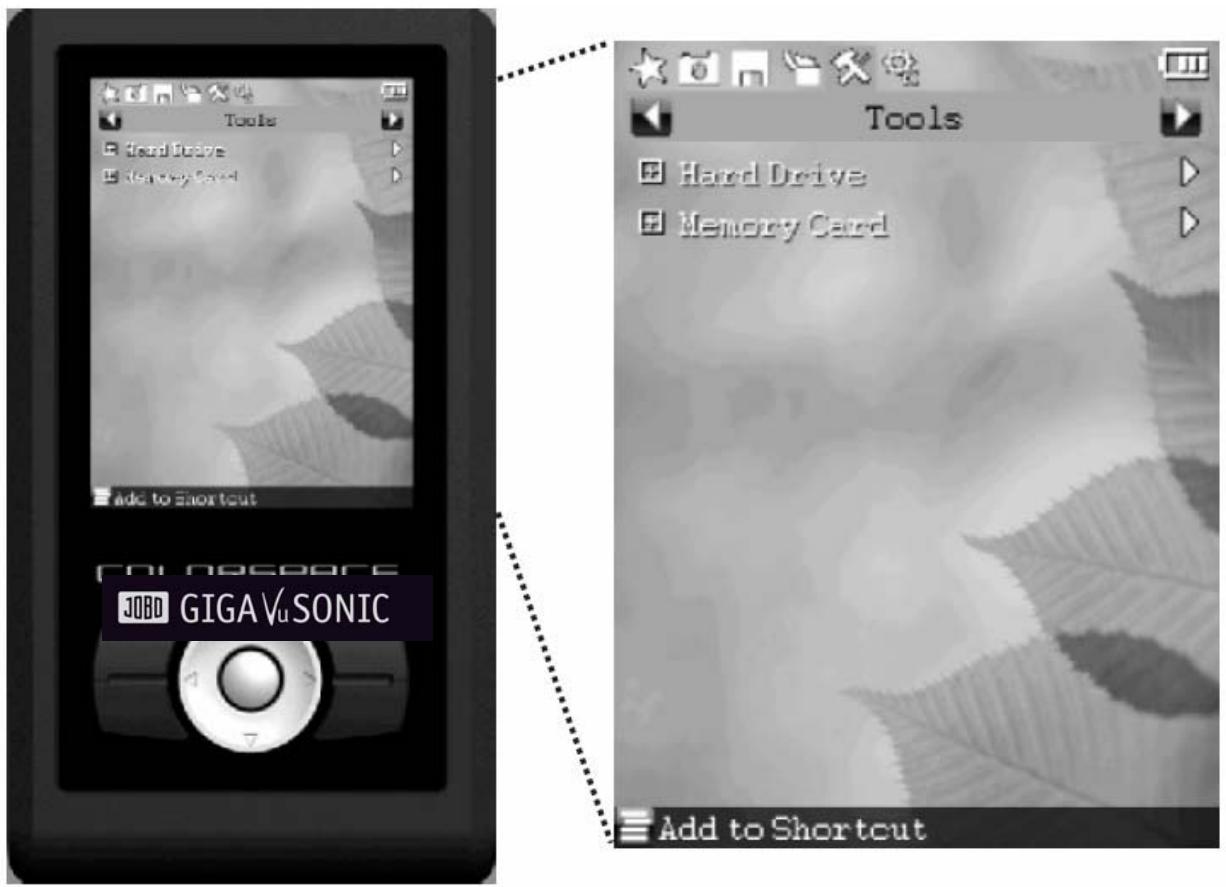
1. Hard Drive Tools
With built-in hard drive tools of GIGA VU SONIC, you can conveniently view hard drive information, get to know and optimize performance of your hard drive, and reduce data loss due to hard drive breakdowns like bad sectors, etc.
Viewing capacity and S.M.A.R.T. information:
Under
S.M.A.R.T.
The full name of S.M.A.R.T. is Self-Monitoring, Analysis and Reporting Technology, which is mainly used to detect and record the predictable mechanical malfunctions occurred to the hard drive. This type of predictable malfunction accounts for more than 60% of total malfunctions of the hard drive. With S.M.A.R.T., warnings can be issued before occurrence of this type of malfunctions to protect data content against loss.
Formatting the hard drive:
○ Ensure the hard drive is installed properly (refer to the section of "Hard Drive Installation").
○ Under
○ Select
○ After two times of confirmation, select number of partitions. Capacities of partitions will be evenly allotted as per capacity of the built-in hard drive (if a hard drive of 120GB is divided into 3 partitions, capacities for C, D and E partitions will be 40GB respectively, but the actual capacity is slightly smaller than this value).
○ After formatting is completed, turn off GIGA VU SONIC, and new partitions will be applied when the unit is restarted.
Testing performance of the hard drive:
Under
You can use the tool to:
- test the maximum reading speed, minimum reading speed and average reading speed that the hard drive can achieve on GIGA VU SONIC.
You CANNOT use the tool to obtain:
- the running speed of hard drive on equipment other than GIGA VU SONIC.
- the performance announced by the hard drive manufacturer.
- the actual reading and writing performance of hard drive during backup and USB connection.
2. Memory Card Tools
Testing reading performance of the memory card:Insert the memory card to be tested into the corresponding slot. Under
You can use the tool to:
- test the maximum reading speed, minimum reading speed and average reading speed that CF, MS, MMC and SD memory cards can achieve on GIGA VU SONIC.
You CANNOT use the tool to obtain:
- the running speed of memory card on equipment other than GIGA VU SONIC.
- the performance announced by the memory card manufacturer.
- the actual reading and writing performance of memory card during backup.
Erasing memory card:
Insert the memory card to be erased into the corresponding slot. Under
You can use the tool to:
- delete all data on CF, MS, MMS and SD memory cards.
You CANNOT use the tool to:
- erase memory cards formatted to FAT12.
- change original file system format of the memory card.
- erase memory card that is not formatted.
Chapter VI
Setup
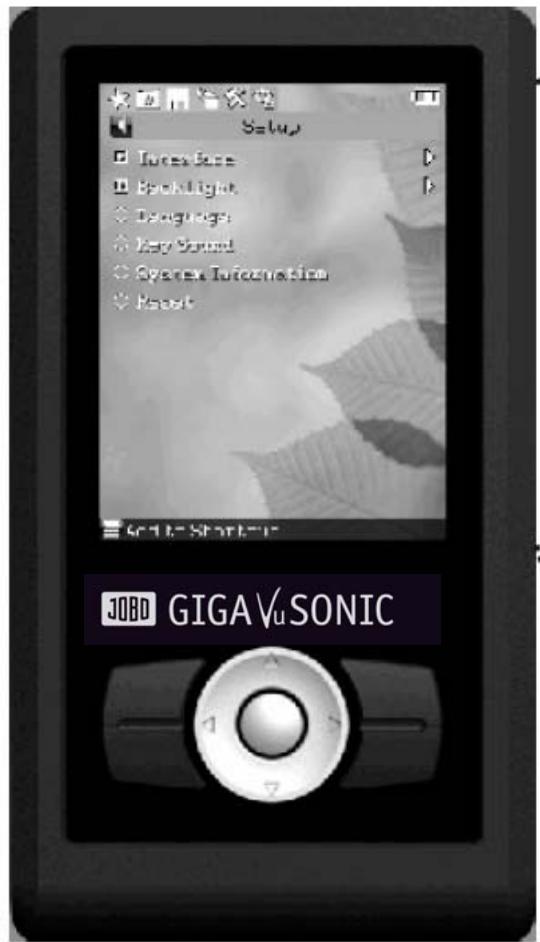
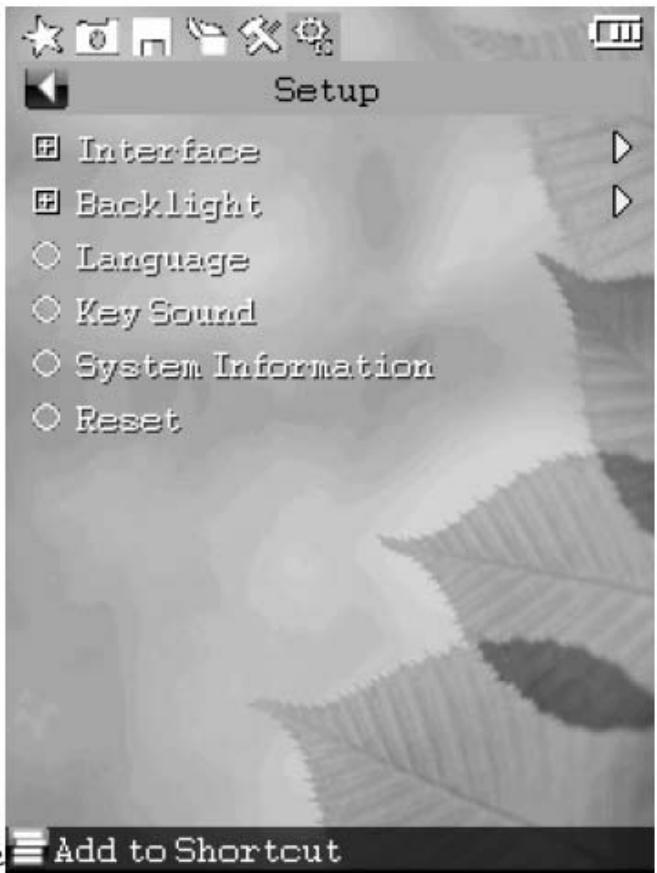
1. Interface Setup
Changing color of the system interface:
Under
Setting the picture as wallpaper:
Under
2. Backlight Setup
Changing the automatic shutdown time of system backlight:
Under
When the interval without any operation reaches the designated value, LCD backlight will automatically shut down.
With the setting, you can:
- reduce consumption of battery power and prolong battery life. It is, therefore, recommended that small value should be set for automatic shutdown time of backlight when the unit is used in the open.
Changing luminance of system backlight:
Under
With the setting, you can:
- reduce consumption of battery power and prolong service time. It is, therefore, recommended that small value should be set for luminance of backlight when the unit is used in the open.
- readjust luminance to adapt to the influence of different environment
3. Language Setup
The unit supports multiple languages. Under
The setting can be used to:
- Change the character set of system language, making the existing file or folder inaccessible or display messy code in the name of the file or folder.
4. Key Sound
Turning the key sound on/off:
- Under
on the main menu, select , and press Up and Down buttons to turn the key sound on/off. Press "Ok" to confirm the application.
5. Reset
Restoring factory settings:
When queer malfunctions occur, you may try to restore all settings to factory settings. Under
The setting will:
- cover ALL of your user-defined settings, such as all settings in the backup options.
6. System Information
Viewing system information about firmware version: Under
Appendix A: Safety And Operation
1. Safety of the unit body
- Do not use the device in a moist environment. Do not handle the device with wet hands. If liquid enters the device, immediately remove the battery, power off the unit, and return it to the designated dealer for repair. Never use the device corroded by liquid, otherwise it may lead to short circuit of battery. Some batteries with short circuit may cause fire.
- Do not let the unit body fall off, bump against or put heavy object on the unit body. Take the memory card out of the slot when the unit body is transported and handled.
- Do not place the unit body close to strongly magnetic objects, otherwise the data may be lost.
- Do not insert incompatible memory card or foreign matter into the slot or DC charging port by force.
- Do not dismantle or modify the casing or circuit of the unit body.
2. Safety of battery
- Users shall not change the battery by themselves. In the case of normal ageing of battery or damaged battery caused by improper use, the whole product must be returned to the local dealer or factory for replacement.
- When charging the battery inside PD100S, immediately cut off the power and remove the battery upon discovery of peculiar smell, extremely high temperature or smoke from the unit body or the charger. Watch out when removing the battery to avoid burning yourself by the battery.
- When using a charging adaptor not from the original manufacturer, please confirm the output standard conform to that of the unit (5V 1A).
- The battery being charged will become slightly hot. Please charge the unit in a place with good heat dissipation.
3. Safety of maintenance
- Power off the unit when opening the back cover.
- Do not insert or remove the hard drive when the unit is powered on.
Appendix B:
Operation Techniques and Problem Solving
1. Operation techniques
- Prior to important shooting, charge the unit (in the mode of power off) in advance and test the unit.
- Please select high-speed memory card to achieve ideal backup speed. Test the memory card when buying it.
- Update the firmware timely.
2. Troubleshooting
The unit won't start:
- Charge the battery.
- Keep the unit in appropriate ambient temperature, namely 5-45
Copying fails
- Use the
[ [ to confirm whether there is enough residual capacity of hard drive. If many a partition is used, change the [ [ to the partition with sufficient capacity. - Use the
[ [ to check S.M.A.R.T of the hard drive, check if the hard drive temperature is within proper range and if there are malfunctions like bad sectors, etc. - Reset all settings to the factory settings.
- Charge the battery.
- Confirm the memory card is compatible with the unit.
- Switch SSC switch.
Crashed unit or no response from the button
- Press and hold the power supply button for about 15 seconds, and do not release the button until shutdown appears.
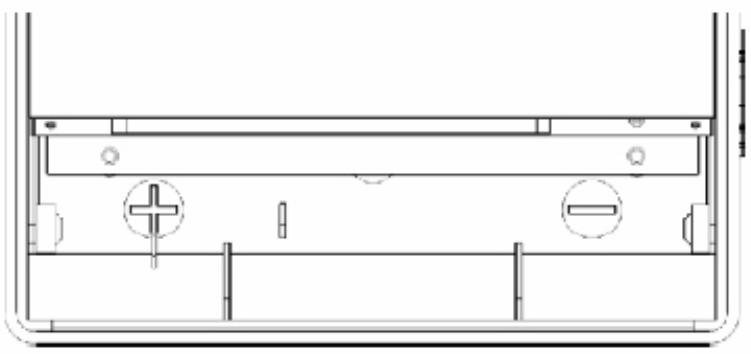
- If the operation above does not work, open the back cover and remove the battery by following steps in the section of "Removing the Battery". When reinstalling the battery, make sure to install the battery in accordance with the polarity indicated inside the battery compartment.
3. Replacing and Installing the Battery
Operation described in the section is dangerous to a certain degree. Do not try the operation unless it is necessary. Consult the local dealer or customer service department prior to the operation.
Removing the battery
A) Open the back cover of the unit. Refer to relevant sections of "Hard Drive Installation" for how to open the back cover.
B) Remove the battery from its compartment. If the battery emits high heat, be careful and avoid burning yourself by the battery.
Battery installment:
1) Confirm the battery polarity by referring to the following diagram:

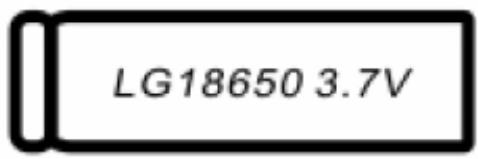

2) Install the battery as per the polarity indicated inside the battery compartment..
3) Install the back cover.
Contact/Service
If you have any questions on or need help with our products please do not hesitate to get in touch with our Technical Service. You can reach our service people by phone under the telephone number indicated below from Monday through Thursday from 9:00 am to 4:00 pm and on Friday from 9:00 am to 1:00 pm. Independently of these service times you can also get in touch by e-mail, fax or mail:
JOBO AG
Kölner Straße 58
D-51645 Gummersbach
Tel. 0049 2261 545-72
Fax: 00492261545-42
E-mail: support@jobo.com
www.jobo.com
GIGA VU SONIC Manual English V1.0
Copyright © 2008 JOBO